- Open the site on your phone using cellular data instead of Wi-Fi.
- Try a private browser window.
- Use an independent uptime checker.
- Check your hosting provider’s status page.
- Test both the homepage and
/wp-admin/.
If the site works elsewhere, investigate your browser cache, local network, or DNS resolver. DNS translates your domain name into the server address browsers need.
If multiple checks fail, record the exact error and the time you first noticed it. That information helps your host or developer investigate.
What to Do When Your WordPress Site Goes Down
Before editing files, confirm that you have a usable backup. Preserve the current files, database, and logs where possible, even if the site is broken. Make one change at a time and record the result.
1. Check Hosting Status and Recent Changes
Ask your hosting provider whether server problems, database availability, storage, or account limits explain the outage. Include your domain, error message, and timestamp with its time zone.
Next, review what changed:
- Did a plugin, theme, or WordPress update run?
- Did someone change the PHP version?
- Were DNS records or hosting settings edited?
- Did your domain registration or hosting subscription expire?
For example, if the first failure follows a plugin update by two minutes, investigate that plugin before changing unrelated settings.
2. Troubleshoot Plugin Updates, Critical Errors, and 500 Errors
A WordPress critical error can occur when PHP cannot finish running the site’s code. A WordPress 500 internal server error signals a server-side failure without identifying the cause.
Use the error to guide your next step:
| Symptom | First action |
|---|---|
| WordPress site down after a plugin update | Temporarily deactivate the updated plugin |
| Critical error message | Check the administrator email and PHP error log |
| Blank or white screen | Investigate plugin or theme conflicts and fatal errors |
| 500 internal server error | Ask your host to inspect server logs and configuration |
The WordPress common errors handbook (opens in a new tab) explains these troubleshooting paths. Avoid assuming every blank screen or 500 error has the same fix.
If you can access the dashboard, deactivate the suspected plugin and retest. Otherwise, use the file-access method below. Test a repaired or replacement version on staging before reactivating it.
3. Check Database, DNS, SSL, and Security Issues
When your WordPress site is not loading, also check:
- Database connection: Ask your host whether the database service is available. Verify credentials if someone recently changed them.
- DNS: Compare current records with your host’s required values.
- SSL certificate: Check expiration and configuration if browsers display a certificate warning.
- Security: Investigate unexpected redirects, unfamiliar administrator accounts, or hosting suspension notices.
Patchstack’s State of WordPress Security in 2026 (opens in a new tab) documents vulnerabilities and malware trends. However, downtime alone does not establish that someone compromised your site.
If you suspect compromise, involve your host or a security specialist. Restoring a backup without addressing the entry point can leave the site vulnerable.
How to Access WordPress Admin When the Site Is Down
An unavailable homepage does not always mean you have lost administrative access. Gather your WordPress login details and hosting credentials, or identify the person who manages them. Having the right access ready helps you choose a recovery method without delaying the investigation.
1. Use WordPress Recovery Mode
If you need to fix “There has been a critical error on this website” or the older “This site is experiencing technical difficulties” message, check the site administrator’s inbox and spam folder.
For certain fatal errors, WordPress sends a recovery link. WordPress recovery mode can pause the faulty plugin or theme for your recovery session, allowing dashboard access. It does not automatically repair the public website. Deactivate or fix the identified component, then test outside that session. See the official recovery mode explanation (opens in a new tab).
2. Use Your Hosting Panel or SFTP
If no recovery email arrives, open your host’s file manager or connect through SFTP, which provides secure file access.
Navigate to wp-content/plugins/ and rename the suspected plugin’s folder, for example from example-plugin to example-plugin-disabled. Retest the site. Keep the files rather than deleting them.
If the problem persists, ask your developer to investigate other plugins, the theme, and server logs.
3. Enable Debugging Safely
Start with your host’s PHP error log. If you need WordPress debugging, preferably reproduce the problem on staging.
The WordPress debugging handbook (opens in a new tab) describes WP_DEBUG, WP_DEBUG_LOG, and WP_DEBUG_DISPLAY. These settings can log errors while hiding them from visitors. Edit existing definitions rather than adding duplicates. Protect logs from public access, disable temporary debugging afterward, and remove sensitive diagnostic files.
Before restoring a full backup, check whether doing so would overwrite recent orders, form submissions, or content.
For example, a WooCommerce store might receive orders after its overnight backup but before an afternoon outage. Restoring that backup’s database could remove those orders from WordPress. Ask whether a targeted file repair can preserve current transaction data.
Does Website Downtime Hurt SEO?
Prolonged downtime can affect search visibility. Google slows crawling when it encounters server errors and can eventually remove URLs that keep returning them. A brief outage does not automatically erase your rankings. Google’s HTTP status code documentation (opens in a new tab) explains this behavior.
For temporary maintenance, ask your developer to return an appropriate 503 Service Unavailable response. Avoid serving an error page with a successful 200 status.
After recovery, verify that important pages return normal responses and review Google Search Console for ongoing server errors.
How to Get WordPress Downtime Alerts
Monitoring helps you discover an outage before a customer reports it. Choose a service that checks availability independently of WordPress and sends notifications through a channel someone actively watches.
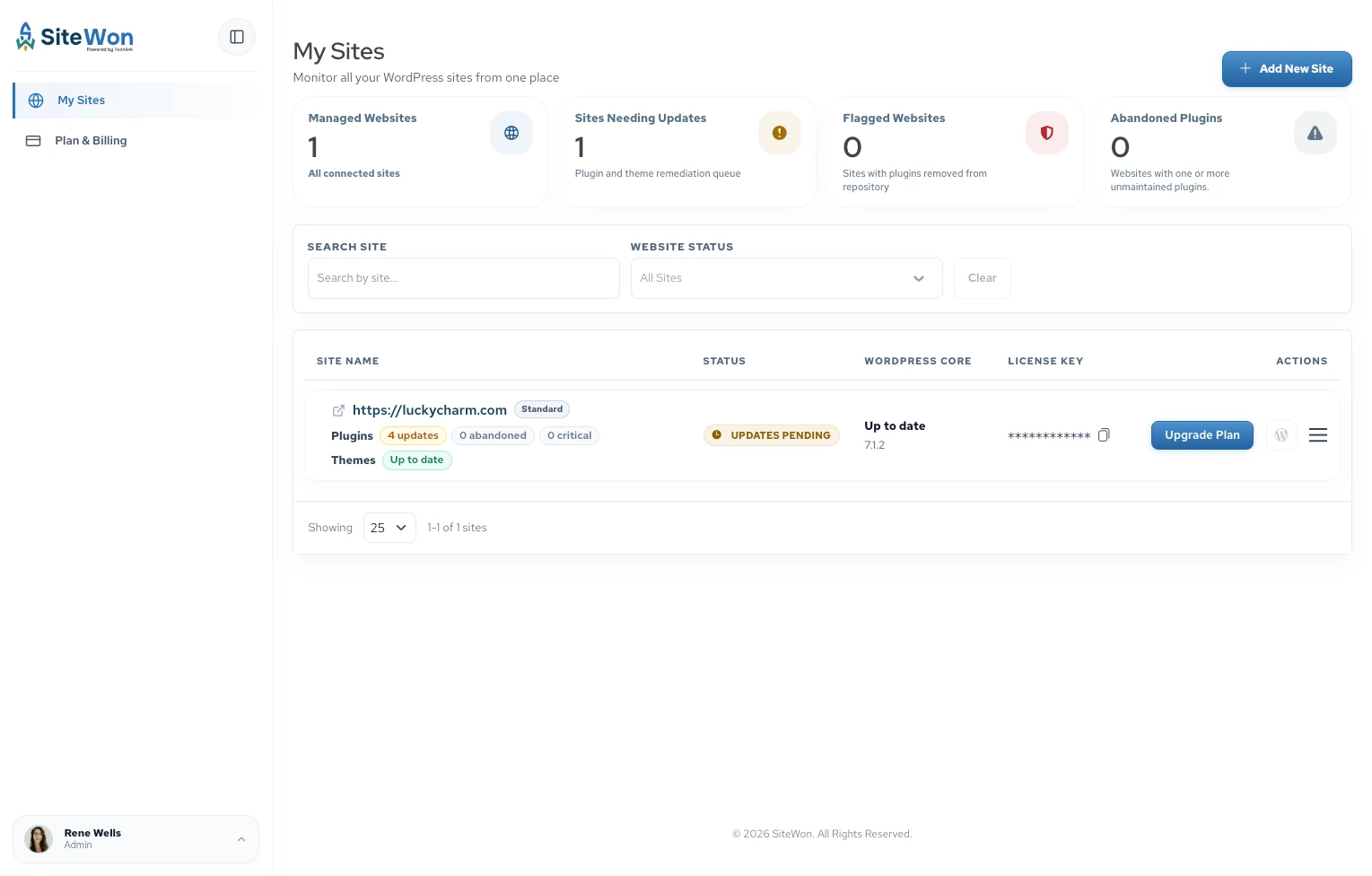
Explore SiteWon’s free WordPress website monitoring for its uptime monitoring and availability history. Confirm notification settings and test your response process after setup.
What to Do When a Client’s WordPress Site Goes Down
Assign an incident owner, communicate the confirmed impact, and give the client a specific time for the next update. Avoid promising a repair deadline before identifying the cause.
For example, if three client sites on the same hosting server fail together, check that shared infrastructure first. Report the affected sites to the host in one incident rather than having team members independently change plugins.
For teams deciding how to monitor multiple client websites, SiteWon’s WordPress maintenance for agencies brings uptime, updates, security, and performance information into one dashboard.
Get Your Site Back Online and Stay Informed
A WordPress outage needs a clear response: confirm the problem, identify the cause, and make targeted changes while protecting your data. Once the site loads again, test forms, logins, and checkout.
You shouldn’t have to wait for a customer to report a problem. Whether you manage one website or multiple client sites, SiteWon helps you track uptime and website health from one dashboard. Start monitoring your WordPress website for free with SiteWon and make monitoring part of your maintenance routine.