1. How to Test WordPress Backups
A backup only becomes a dependable recovery option when you know how to restore it. The official WordPress backup guidance explains that a complete site recovery requires both files and the database.
- Check the latest backup’s timestamp and completion log.
- Confirm that the backup includes your database, uploads, themes, plugins, and necessary configuration files.
- Verify access to a backup stored separately from the production server.
- Restore a recent backup to an isolated staging environment.
- Check administrator login, recent content, images, and essential features.
- Record the restore result, time required, and any errors.
Before restoring to staging, block public access and disable outgoing emails, live payments, and external integrations. Otherwise, your test copy could send customer notifications or trigger real actions.
2. Have You Updated WordPress, Plugins, and Themes Safely?
Your WordPress backup and update checklist should pair software changes with compatibility checks and functional testing. WordPress recommends taking a backup before updating its core software in its official update instructions.
- Create a fresh backup before applying updates.
- Read release notes for compatibility requirements and changed settings.
- Check dependencies between plugins, extensions, and themes.
- Test substantial changes on staging.
- Update WordPress core, plugins, and themes as appropriate, following documented dependencies.
- Apply changes in manageable groups and check for errors.
- Clear relevant caches and repeat critical tests on production.
If you’re learning how to update WordPress plugins safely, start by identifying what each plugin affects. After updating a booking plugin, for example, complete a test booking and check its notification email.
Review automatic update settings too. Automated updates still need failure alerts and a recovery process.
3. Have You Reviewed Security and User Access?
A monthly WordPress security checklist should cover account access, suspicious activity, and unsupported software. The WordPress hardening guide provides guidance on authentication, permissions, and trusted software sources.
- Review administrator accounts and investigate unfamiliar users.
- Remove access that former employees or contractors no longer need.
- Confirm that users have only the permissions their work requires.
- Check multifactor authentication for privileged accounts where supported.
- Review security scans, login alerts, and unexpected file changes.
- Identify abandoned plugins or unsupported server software for replacement or upgrades.
Record suspicious findings and investigate their cause. A clean scan is useful evidence, but it doesn’t prove that every part of your website is secure.
4. Are Uptime Monitoring and Alerts Working?
Your WordPress uptime monitoring checklist should confirm that monitoring detects problems and notifies someone who can respond.
- Review recorded outages and recurring server errors.
- Confirm that monitoring covers the correct production URLs.
- Monitor an important internal page alongside the homepage.
- Check for expected page content where your monitoring tool supports it.
- Test alert delivery and verify the responsible contact.
- Review HTTPS certificate expiry and renewal alerts.
Checking expected content helps catch pages that return a successful server response while displaying an application error. Document who contacts the host when an outage requires escalation.
5. Do Links, Forms, and Important Features Work?
Wondering how to check a WordPress site for broken links? Use a crawler or link-checking service, then manually review flagged results. Some external websites block automated checks.
- Scan internal links, external links, and image URLs.
- Replace outdated destinations and fix unnecessary redirect chains.
- Add relevant redirects for moved pages where appropriate.
- Submit contact forms and confirm delivery to the intended inbox.
- Test navigation, search, downloads, and account access where applicable.
- Check booking or checkout workflows using an approved test method.
- Repeat essential checks on mobile and while logged out.
A form’s success message doesn’t confirm email delivery. Check the actual inbox and any connected system that should receive the enquiry.
6. Does Your Database Need Cleanup?
If you’re learning how to clean up a WordPress database, start by identifying disposable data and reviewing what your cleanup tool proposes to delete. Avoid removing unfamiliar records.
- Take a fresh database backup before cleanup.
- Review spam comments, trashed content, and excessive revisions.
- Remove expired temporary data using supported tools.
- Preview cleanup selections before confirming deletion.
- Preserve orders, submissions, and records required by your retention policy.
- Leave unfamiliar tables untouched until you verify their purpose.
- Test essential functions after cleanup.
Cleanup doesn’t guarantee faster pages. If performance remains poor, investigate hosting resources, large images, uncached requests, and plugin activity.
7. Have You Recorded Results and Assigned Follow-Up Work?
Finish your WordPress monthly maintenance session with a record that another person can understand.
- Record the maintenance date and person responsible.
- List updated components and their versions.
- Save backup restore results and functional test evidence.
- Document unresolved issues and their business impact.
- Assign each follow-up task an owner and target date.
- Schedule the next maintenance review.
For WordPress maintenance tasks for agencies, keep a standard checklist with site-specific tests. An online store needs checkout checks; a lead-generation website needs reliable form delivery.
How Often Should You Perform WordPress Maintenance Tasks?
Run the complete checklist monthly, with automated monitoring and backups operating between reviews. Assess urgent security fixes promptly rather than waiting for your next maintenance session.
Use this suggested website maintenance schedule as a starting point:
| Frequency | What to do |
|---|---|
| Ongoing | Run scheduled backups and monitor availability, backup failures, and security alerts. |
| Monthly | Complete the seven maintenance sections above. |
| Quarterly | Review hosting capacity, licenses, software support, and recovery documentation. |
Choose a backup frequency based on how much data you can afford to lose. A store receiving daily orders needs more frequent backups than a rarely updated brochure website.
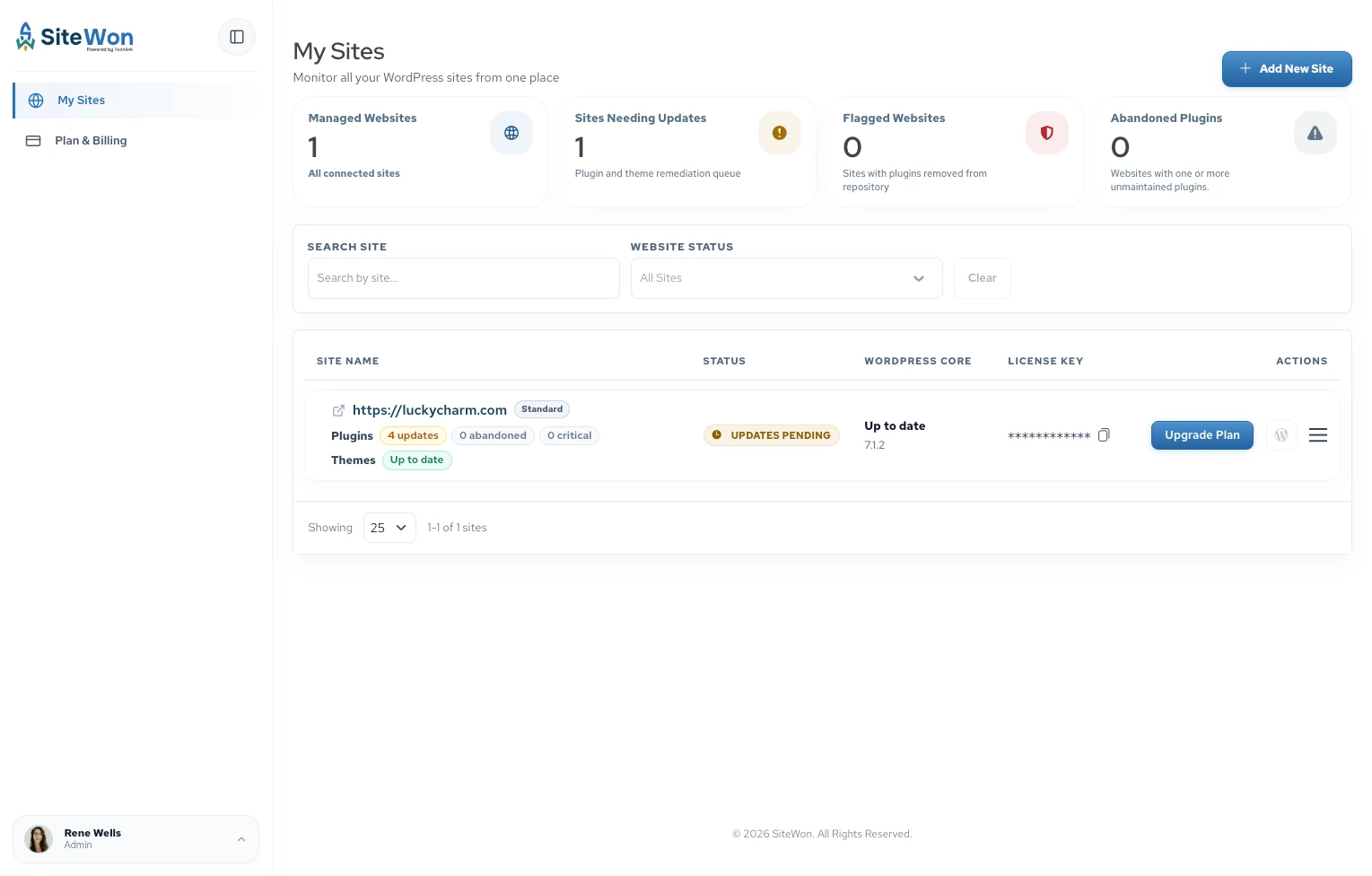
Spending too much time switching between client websites, tracking updates, and chasing unfinished maintenance tasks? Manage multiple WordPress sites from one dashboard to simplify your agency’s workflow. Explore WordPress maintenance for agencies with SiteWon and give your team more time to focus on client work.
Pro Tip: Record What a Rollback Could Overwrite
Before making changes, identify any new data a database restoration could remove. Restoring yesterday’s backup on a busy store could overwrite today’s orders.
Include this risk in your maintenance log. Your recovery plan should explain how to preserve recent transactions or submissions before restoring an older database.
Turn Your WordPress Maintenance Checklist Into a Monthly Routine
Schedule this WordPress maintenance checklist as a recurring task. Mark items complete only after checking the result, and assign unresolved problems to someone who can address them.
You just read a seven-step checklist. Now picture running it on every client site, every month.
SiteWon helps agencies monitor their WordPress sites in one place, so the routine checks take less of your team’s time.
Get Free Monitoring | Explore Our WordPress Monthly Maintenance Plan